




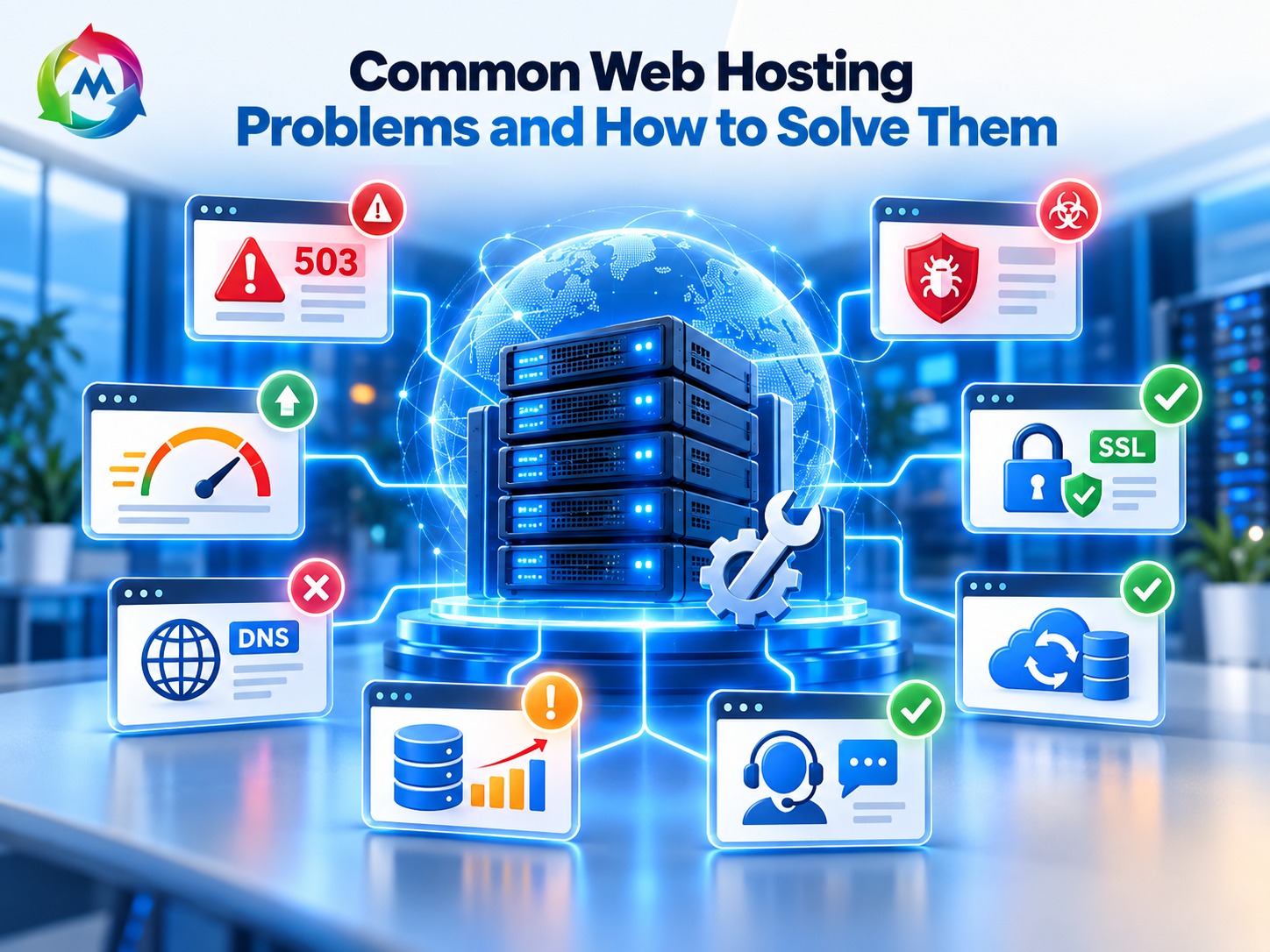
Common Web Hosting Problems and How to Solve Them
Web hosting plays an important role in keeping a website online. It stores your website files and makes them available to visitors. However, websites can sometimes experience technical problems, even when they use a hosting service.
Common web hosting problems include slow loading, server errors, website downtime, DNS issues, and security warnings. These problems can affect visitors and interrupt your business. Fortunately, many of them can be identified and solved with a few simple steps.
In this guide, you will learn about common hosting problems, what causes them, and how to fix them. You will also discover ways to prevent these issues in the future.
1. Slow Website Loading
A slow website can frustrate visitors and make it difficult for them to use your services. This problem may happen when the hosting server has limited resources or when the website contains large files.
For example, large images, unnecessary plugins, and heavy scripts can increase loading time. In addition, high traffic may place extra pressure on the server.
How to solve it
- Optimize images before uploading them.
- Enable suitable website caching.
- Remove plugins and files you no longer need.
- Check your hosting plan’s CPU and memory limits.
- Upgrade your hosting plan if your website needs more resources.
You can also test your website with Google PageSpeed Insights to find areas that need improvement.
2. Website Downtime
Website downtime happens when visitors cannot access your website. This may occur because of server problems, scheduled maintenance, high traffic, or hosting account issues.
As a result, customers may be unable to view your products, contact your business, or place orders.
How to solve it
First, check your hosting provider’s service status to see whether there is a known outage. Next, try opening your website from another device or network.
If the problem continues, check your hosting account and contact technical support. They can help identify whether the issue comes from the server or your website.
In addition, use website monitoring tools to receive alerts when your website becomes unavailable.
3. DNS Configuration Problems
DNS stands for Domain Name System. It connects your domain name to the server where your website is hosted.
If your DNS records are incorrect, visitors may see an error instead of your website. This issue can happen after changing hosting providers, updating nameservers, or editing DNS settings.
How to solve it
- Check that your domain is active and has not expired.
- Confirm that your nameservers point to the correct DNS provider.
- Review your DNS records and make sure they match your hosting setup.
- Allow time for DNS changes to update across different networks.
- Contact your domain provider if you cannot identify the problem.
However, avoid changing DNS records without checking your current settings. Incorrect changes can make your website or email unavailable.
4. SSL Certificate Errors
An SSL certificate helps secure the connection between a website and its visitors. Websites that use HTTPS provide an encrypted connection, which is especially important for login pages and online stores.
If an SSL certificate expires or is set up incorrectly, visitors may see a security warning in their browser. This can reduce trust and prevent some visitors from accessing your website.
How to solve it
First, check whether your SSL certificate is active and covers the correct domain name. Then, renew or reinstall it if necessary through your hosting control panel or certificate provider.
Also, make sure your website uses HTTPS links instead of outdated HTTP links. If the warning continues, ask your hosting provider to review the certificate setup.
5. 500 Internal Server Error
A 500 Internal Server Error means the server encountered a problem while trying to process a request. However, the error message does not identify the exact cause.
This issue may result from incorrect website settings, a plugin conflict, a coding error, or server resource limits. It can also occur after a website update.
How to solve it
- Check the website’s error logs for more details.
- Review recent plugin, theme, or code changes.
- Restore a working backup if a recent change caused the error.
- Check file permissions and server settings.
- Contact your hosting provider if the error appears to come from the server.
For WordPress websites, you can also check whether a recently installed plugin or theme is causing the issue. Before making changes, create a backup whenever possible.
6. Database Connection Errors
Many websites use a database to store important information. For example, WordPress stores website content, settings, and user information in a database.
If your website cannot connect to its database, it may show a database connection error or fail to load certain pages.
This can happen because of incorrect database details, a database server problem, or damaged database tables.
How to solve it
First, check that the database name, username, password, and server details are correct. For WordPress, these settings are usually stored in the wp-config.php file.
Next, check whether the database service is running and whether your hosting account has reached any database limits. If the problem continues, contact your hosting provider for help.
Do not delete or replace database files without a verified backup.
7. Hosting Storage Limit Reached
Every hosting plan includes a certain amount of storage. Your website uses this space for files, images, emails, databases, and backups.
When your account runs out of storage, you may be unable to upload new files, receive emails, or update your website.
How to solve it
- Check your storage usage in your hosting control panel.
- Remove unused backups and temporary files after verifying they are no longer needed.
- Delete unnecessary website files and old email attachments.
- Optimize large images and media files.
- Upgrade your hosting plan if your website needs more storage.
In addition, keep regular backups outside your hosting account so they do not use all your available space.
8. Email Not Working
Business email is important for communication with customers, partners, and suppliers. However, email problems may occur because of incorrect settings, full mailboxes, DNS errors, or server issues.
For example, you may be unable to send messages, receive emails, or connect your mailbox to an email application.
How to solve it
First, check whether your email account is active and has enough storage. Next, review the incoming and outgoing mail server settings in your email application.
Also, check that your domain’s MX records are configured correctly. If you recently changed hosting providers, make sure your email service is still connected to the correct server.
If the issue continues, contact your email or hosting provider for assistance.
9. Website Resource Limit Errors
Hosting plans have limits on resources such as CPU usage, memory, and the number of processes. When your website exceeds these limits, it may become slow or show errors such as 503 Service Unavailable.
This can happen when your website receives a sudden increase in traffic or runs scripts that use too many resources.
How to solve it
Check your hosting control panel to see whether your website is reaching its resource limits. Then, review plugins, scripts, and background tasks that may be using too many resources.
If your website regularly reaches its limits, consider upgrading to a plan with more resources. However, first make sure that unnecessary processes are not causing the problem.
10. Website Problems After Hosting Migration
Moving a website to a new hosting provider can improve its performance or meet new business needs. However, problems may occur if files, databases, DNS records, or email settings are not transferred correctly.
For example, your website may show missing images, database errors, or SSL warnings after migration.
How to solve it
- Confirm that all website files were transferred.
- Check that the database was imported correctly.
- Verify database connection details.
- Review the domain’s DNS records.
- Install and test the SSL certificate.
- Check that website pages, forms, and emails work correctly.
Before updating your DNS records, test the website on the new server when possible. Also, keep a backup of your original website until the migration is complete and verified.
How to Prevent Common Web Hosting Problems
Although technical problems cannot always be avoided, regular maintenance can reduce their impact. Therefore, it is important to check your website and hosting account regularly.
Here are some useful practices:
- Create regular backups: Keep copies of your website files and database.
- Update your software: Install updates for your CMS, themes, and plugins.
- Monitor website performance: Check loading speed, uptime, and resource usage.
- Use strong passwords: Protect your hosting control panel and website accounts.
- Review your hosting plan: Make sure your plan still meets your website’s needs.
- Use SSL: Keep your website’s HTTPS certificate active.
- Keep records of changes: Note important updates to help find the cause of future problems.
In addition, contact your hosting provider when an issue appears to involve server settings or infrastructure. Share the exact error message and the time it occurred to help the support team investigate.
Conclusion
Common web hosting problems can affect website speed, security, availability, and customer experience. Slow loading, downtime, DNS errors, SSL issues, and database connection problems are some of the issues website owners may face.
Fortunately, you can solve many of these problems by checking your hosting settings, reviewing error messages, keeping backups, and maintaining your website. However, some server-related issues require help from your hosting provider.
Choosing a suitable hosting plan and performing regular maintenance can help keep your website running smoothly. If you are looking for hosting services for your website, visit MSoft Host to explore available options. You can also learn more about domain registration.
Frequently Asked Questions
What are the most common web hosting problems?
Some common problems include slow website loading, server downtime, DNS errors, SSL certificate warnings, database connection errors, and limited server resources.
Why is my website not loading?
Your website may not load because of server downtime, DNS errors, an expired domain, SSL problems, or website configuration issues. Check the exact error message to help identify the cause.
How can I fix a slow hosting server?
Start by checking your website’s resource usage and server response time. Then, optimize images, enable suitable caching, remove unnecessary plugins, and consider upgrading your hosting plan if needed.
Can hosting problems affect website security?
Yes. Incorrect server settings, outdated software, and missing security features can increase security risks. Use HTTPS, strong passwords, regular backups, and updated website software to help protect your site.
When should I contact my hosting provider?
Contact your hosting provider if the server is unavailable, your account has resource issues, or you cannot resolve a problem through your hosting control panel. Provide the error message and details of the steps you have already tried.
How can I prevent website downtime?
Use regular backups, keep your website updated, monitor uptime, and choose a hosting plan that matches your resource needs. These steps can help reduce downtime, although they cannot prevent every outage.